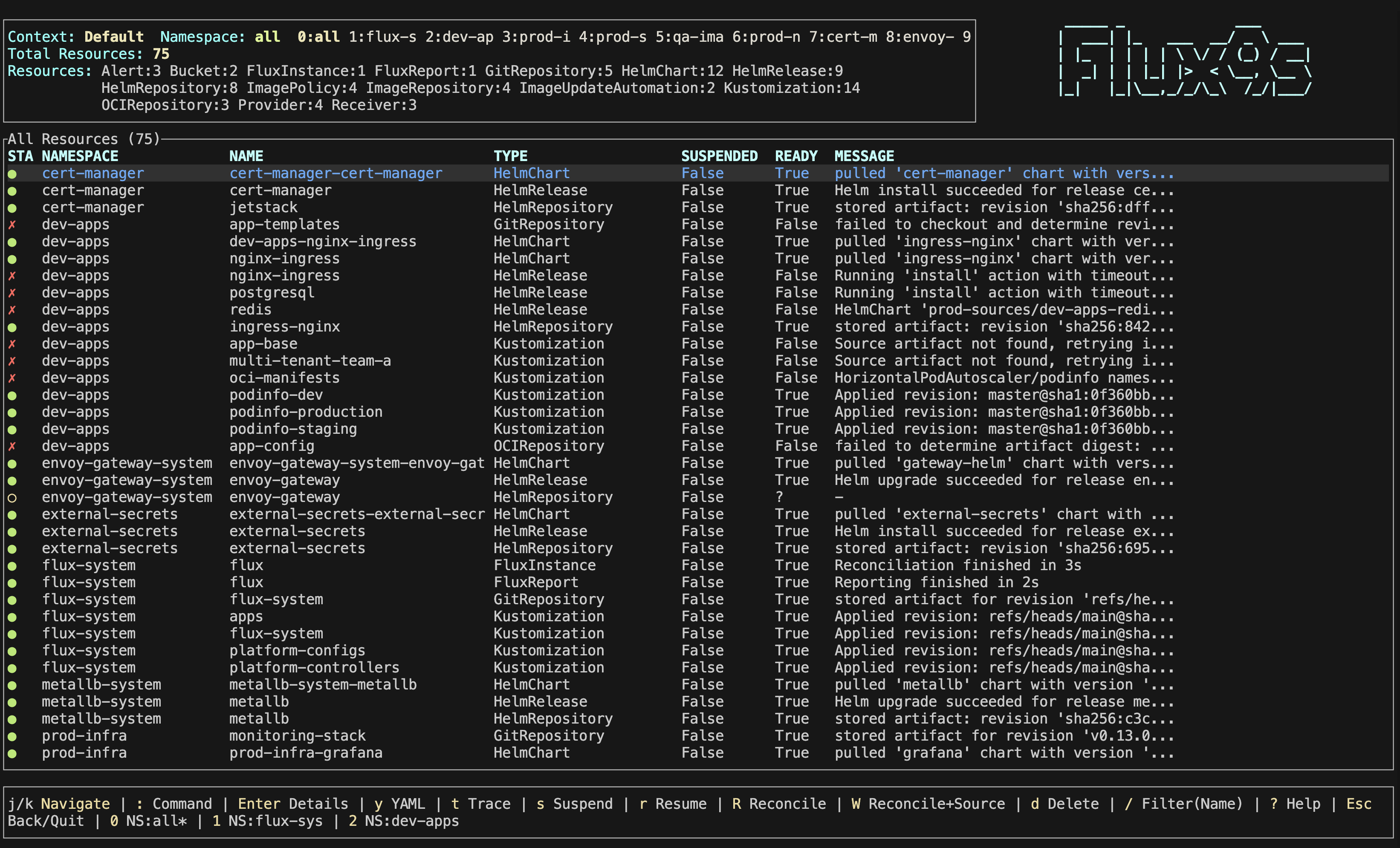
User Guide
Video Demos
Graph View / Favorite Demo
See how the graph view visualizes resource relationships and dependencies.
Theme Selection Demo
Watch the interactive theme selection with live preview in action.
Navigation
Use these keyboard shortcuts to navigate flux9s:
| Key | Action |
|---|---|
j / k | Navigate up/down |
: | Command mode (e.g., :kustomization, :gitrepository) |
Enter | View resource details |
/ | Filter resources by name (in list views) or search text (in YAML/describe/trace views) |
n / N | Jump to next/previous search match (in YAML/describe/trace views) |
Shift+N | Sort list by name (press again to reverse, third press restores default order) |
Shift+A | Sort list by age |
Shift+T | Sort list by type |
Shift+S | Sort list by status (problems first) |
s | Suspend reconciliation |
r | Resume reconciliation |
R | Reconcile resource |
y | View resource YAML |
d | View describe output |
e | Edit resource in system editor (disabled in read-only mode) |
f | Toggle favorite |
g | View resource graph (Kustomization, HelmRelease, etc.) |
h | View reconciliation history |
t | Trace ownership chain |
W | Reconcile with source |
Ctrl+d | Delete resource (with confirmation) |
? | Show/hide help |
q / Esc | Go back; shows a quit prompt when at the root view |
Q | Quit immediately (no prompt) |
Ctrl+C | Quit (also :q, :quit) |
Tab | Autocomplete command |
Commands
Type these commands in command mode (press :):
| Command | Description |
|---|---|
:ctx <name> | Switch to a different Kubernetes context |
:ctx | Open interactive context selection menu |
:context <name> | Alias for :ctx <name> |
:ns | Open interactive namespace picker menu |
:ns <namespace> | Switch to a specific namespace |
:namespace <ns> | Alias for :ns <namespace> |
:ns all | View all namespaces |
:all | Show all resources (clear filters) |
:healthy | Show only healthy resources |
:unhealthy | Show only unhealthy resources |
:favorites | View favorite resources |
:fav | Alias for :favorites |
:events | Live Kubernetes events feed |
:ev | Alias for :events |
:pulse | Cluster health dashboard |
:dashboard | Alias for :pulse |
:logs | Controller log viewer (pod submenu) |
:logs <pod> | Stream a controller pod by name/prefix |
:skin <name> | Change theme/skin (direct) |
:skin | Open interactive theme selection menu |
:readonly | Toggle readonly mode |
:read-only | Alias for :readonly |
:help | Show/hide help |
:trace <res> | Trace ownership chain for a resource |
:q or :q! | Quit application |
:quit or :exit | Aliases for :q |
Resource Type Commands
You can filter by resource type using commands like:
:kustomizationor:ks- View only Kustomization resources:gitrepositoryor:gitrepo- View only GitRepository resources:helmreleaseor:hr- View only HelmRelease resources:fluxinstanceor:fi- View only FluxInstance resources:resourcesetor:rset- View only ResourceSet resources:ocirepositoryor:oci- View only OCIRepository resources- And many more - use
Tabfor autocomplete to see all available resource types
All resource type commands support autocomplete with Tab key.
With discoverFluxResources
enabled, CRDs labeled app.kubernetes.io/part-of=flux (the Flux Operator’s
convention) also get commands here — the kind name, plural, and kubectl
short names all work, and the kinds appear in the unified list (view-only).
Interactive Submenus
Some commands open interactive selection menus when used without arguments, providing an easier way to select from available options.
Context Submenu (:ctx)
When you type :ctx and press Enter without specifying a context name, flux9s displays an interactive menu of available Kubernetes contexts. The current context is marked with “(current)”.
Navigation:
j/kor↓/↑- Navigate through optionsEnter- Select the highlighted contextEsc- Cancel and close submenu
The submenu appears as a centered overlay on top of the current view, making it easy to see and select your desired context without needing to remember exact names.
All submenus support filtering with the same keys as the resource list: press / to start filtering, type to narrow the list, Enter to apply the filter, and Esc to cancel it (a second Esc closes the menu). PageUp/PageDown (or Ctrl+f/Ctrl+b) page through long lists, and : closes the menu straight into command mode.
Theme Submenu (:skin)
When you type :skin and press Enter without specifying a theme name, flux9s displays an interactive menu of available themes with live preview.

Features:
- Live Preview: Theme changes immediately as you navigate
- Current Theme: Marked with “(current)”
- Built-in Themes: Embedded themes marked with “[built-in]”
- 17 Built-in Themes: Includes popular themes like dracula, nord, monokai, gruvbox-dark, and more
Navigation:
j/kor↓/↑- Navigate through themes (with live preview)Enter- Apply theme temporarily (session only)s- Save theme to config file (persists across sessions)Esc- Cancel and restore original theme
The submenu saves themes to ui.skin in normal mode, or ui.skinReadOnly when readonly mode is enabled.
Health Filtering
Filter resources by health status:
:healthy- Show only healthy resources (ready=true, not suspended, or null status):unhealthy- Show only unhealthy resources (ready=false or suspended=true):all- Clear health filter and show all resources
The header displays a health percentage indicator showing the overall health of your resources. The indicator uses color coding:
- Green (●) - 90% or higher health
- Yellow (⚠) - 70-89% health
- Red (✗) - Below 70% health
Sorting
Sort the resource list k9s-style with shift-key shortcuts: Shift+N (name), Shift+A (age), Shift+T (type), or Shift+S (status, problems first). Press the same key again to reverse the order, and a third time to restore the default namespace/type/name ordering. The active sort column is marked with an arrow (↑/↓) in the table header, and favorites always stay grouped at the top.
Searching Text Views
Inside the YAML (y), describe (d), and trace (t) views, press / to search:
- Type a query and press
Enterto jump to the first match (matching is case-insensitive) n/N- Jump to the next/previous matchEsc- Clear the search (press again to leave the view)
The view title shows the active query and match position (e.g., /spec (2/7)), and matching lines are highlighted.
Watch Status Banner
flux9s watches the cluster continuously. If the connection to the API server degrades (network outage, VPN reconnect, laptop sleep), a red banner appears in the top-right corner of the resource list:
⚠ Watch degraded (N) — data may be stale, reconnecting...
Watchers retry automatically with exponential backoff; the banner disappears as soon as the watch streams recover. While the banner is visible, the displayed resources may be out of date.
Resource Views
Graph View (g)
Visualize resource relationships and dependencies. Shows upstream sources and downstream managed resources.
Supported resource types:
- Kustomization
- HelmRelease
- ArtifactGenerator
- FluxInstance
- ResourceSet
The graph view displays:
- Upstream sources (GitRepository, HelmRepository, etc.)
- Managed resources (workloads, ConfigMaps, Services, etc.) — for Kustomizations, HelmReleases, ResourceSets, and FluxInstances alike; a ResourceSet’s produced Flux resources appear as individual navigable nodes, and arbitrary kinds (Namespaces, CRDs, custom resources) aggregate into the resource group
- Resource groups (aggregated by type)
- Workload groups (aggregated workloads with status)
Navigating the graph:
j/k(or↓/↑) - Move the highlighted focus between nodes; the view scrolls to keep the focused node visible.Enter- Open the focused node’s resource in the detail view. Aggregate nodes (workload/resource groups) and external upstream URLs aren’t directly openable.y/d- View the focused node’s YAML or describe output directly, including managed workloads (Deployments, Services, etc.).Enteron a workload group - Drill into the workload list:Enteron a workload opens its detail (rollout status, containers and images, pods with restarts, events), andlstreams a pod’s logs.Escwalks back up the chain.Esc/Backspace- Return to the graph (when you opened a view from it), then back to the resource list.
Focus starts on the resource you opened the graph from, so you can immediately walk its sources and dependencies.
Reconciliation History (h)
View reconciliation history for resources that track it.
Supported resource types:
- FluxInstance
- ResourceSet
- Kustomization
- HelmRelease
The history view shows:
- Timestamp of each reconciliation
- Revision information
- Status (Success/Failed/Unknown)
- Messages from reconciliation events
Favorites (f)
Mark frequently accessed resources as favorites for quick access.
- Press
fon a resource to toggle favorite status - Use
:favoritesor:favcommand to view all favorites - Favorites are saved to your configuration file
- Favorites appear first in resource lists
Events View (:events)
A live feed of Kubernetes Events in the current namespace scope — the “what is Flux doing right now” view. Flux controllers emit an Event for every reconciliation success and failure, so this surfaces error detail that the resource list’s MESSAGE column truncates.
- The feed follows your namespace scope: the current namespace by default, or
the whole cluster after
:ns all(a NAMESPACE column appears) - Events are streamed in real time, newest first, with Warnings highlighted
/filters by type, reason, object, namespace, source, or message textEnteron an event jumps to the involved resource’s detail view when it is a Flux resource flux9s watches;Escreturns to the events feed- Resource keys act on the selected event’s involved object directly:
y(YAML) andd(describe) work even for non-Flux objects like Pods and Deployments, whilet/g/hand operations (s/r/R) work when the object is a watched Flux resource.Escfrom any of these returns to the events feed Escfrom the feed returns to the resource list and stops the events watch — events are only streamed while the view is open, so there is no overhead the rest of the time
Events also appear in the describe view (d): each resource’s describe output
ends with a kubectl-style Events section listing that resource’s recent events.
Pulse Dashboard (:pulse)
An at-a-glance answer to “is my GitOps pipeline healthy?”, updating in real time from the watch state:
- Ready / failed / suspended totals and a per-kind breakdown, scoped to the
current namespace (or the whole cluster with
:ns all) - The most recent failures with their reconcile messages, for fast triage
(jump to the full list with
:unhealthy) - Flux distribution info from the FluxReport — version, install status, entitlement, operator version, and sync source — plus live controller pod health
Controller Logs (:logs)
Stream the logs of any Flux controller pod without leaving flux9s — the next step after Events when a reconciliation fails in a way conditions don’t explain.
:logsopens a submenu of the discovered controller pods (readiness shown),:logs <pod>streams one directly by exact name or unique prefix- The stream tails recent lines and follows new output live; scrolling up
(
j/k, page keys) pauses following andGjumps back to the newest line /searches the log buffer withn/Nto cycle matches- The buffer is bounded (oldest lines evicted), and the stream runs only while
the view is open —
Escstops it and returns to where you came from
ResourceSet Steps
Step-based ResourceSets (Flux Operator v0.53+) show their ordered steps in the
detail view (Enter), with each step’s phase — done, applying, failed, or
pending — derived live from the reconciliation status, alongside the step’s
resource count, template marker, and timeout. The reconciliation history view
(h) includes the step count of each snapshot.
Operations
Perform actions on selected resources:
| Key | Operation | Valid For |
|---|---|---|
s | Suspend reconciliation | GitRepository, OCIRepository, HelmRepository, Kustomization, HelmRelease, ImageUpdateAutomation |
r | Resume reconciliation | GitRepository, OCIRepository, HelmRepository, Kustomization, HelmRelease, ImageUpdateAutomation |
R | Reconcile resource | All Flux resources (cannot reconcile suspended resources) |
W | Reconcile with source | Kustomization, HelmRelease only |
Ctrl+d | Delete resource | All Flux resources (with confirmation) |
Note: Suspend and Resume operations are only available for resources that support the spec.suspend field. Reconcile operations will fail if the resource is currently suspended.
Editing Resources
Press e on any resource to open it in your system editor. flux9s fetches the full resource YAML, opens it in a temporary .yaml file, and applies your changes via Server-Side Apply when you save and quit.
Editor selection (highest priority first):
FLUX9S_EDITORenvironment variableeditorconfig key (flux9s config set editor vim)$VISUALenvironment variable$EDITORenvironment variable- Fallback:
vi
GUI editors (VS Code, Sublime Text, Atom, Zed) are automatically invoked with --wait so flux9s blocks until you close the editing window.
Note: Editing is disabled in read-only mode. The previous view (YAML, detail, graph, or list) is restored after saving, cancelling, or on error.
Terminal Commands
Configure flux9s from the command line:
# Use a specific kubeconfig file
flux9s --kubeconfig /path/to/kubeconfig
# Show all config options
flux9s config --help
# Set a configuration value
flux9s config set {KEY} {VALUE}
# Set a skin for readonly mode
flux9s config set ui.skinReadOnly rose-pine
# Import and set a skin
flux9s config skins set navy.yaml
# Show the installed version
flux9s --version
# Generate shell completions (bash, zsh, fish, elvish, powershell)
flux9s completions zsh > "${fpath[1]}/_flux9s" # zsh
flux9s completions bash > /etc/bash_completion.d/flux9s # bash
Not all K9s skins are compatible with flux9s. flux9s skins follow a similar format but may require adjustments to work properly.
Supported Resource Types
flux9s supports all Flux CD resources from the official Flux controllers and Flux Operator:
flux9s resolves the API version for each resource at runtime, so it stays compatible as Flux promotes CRDs across versions.
Source Controller (source.toolkit.fluxcd.io)
- GitRepository - Git repository sources
- OCIRepository - OCI artifact sources
- HelmRepository - Helm chart repositories
- Bucket - S3-compatible bucket sources
- HelmChart - Helm chart artifacts
- ExternalArtifact - External artifact sources
Source Watcher (source.extensions.fluxcd.io)
- ArtifactGenerator - Artifact generation
Kustomize Controller (kustomize.toolkit.fluxcd.io)
- Kustomization - Kustomize-based deployments
Helm Controller (helm.toolkit.fluxcd.io)
- HelmRelease - Helm release management
Image Reflector Controller (image.toolkit.fluxcd.io)
- ImageRepository - Container image repositories
- ImagePolicy - Image version policies
Image Automation Controller (image.toolkit.fluxcd.io)
- ImageUpdateAutomation - Automated image updates
Notification Controller (notification.toolkit.fluxcd.io)
- Alert - Alert configurations
- Provider - Notification providers
- Receiver - Webhook receivers
Flux Operator (fluxcd.controlplane.io)
- ResourceSet - Declarative resource sets
- ResourceSetInputProvider - Input providers for ResourceSets
- FluxReport - Flux reports
- FluxInstance - Flux instances
Screenshots
Main View

The main resource view showing all Flux resources in your cluster with real-time updates.
Trace View

Visualize resource relationships and ownership chains to understand dependencies.
Filter View

Quickly find resources by name using the filter feature. Press / to start filtering.
Graph View

Visualize resource relationships and dependencies in a graph format.
Shows upstream sources and downstream managed resources for Kustomization, HelmRelease, ArtifactGenerator, FluxInstance, and ResourceSet.