User Guide
Video Demos
Graph View / Favorite Demo
See how the graph view visualizes resource relationships and dependencies.
Theme Selection Demo
Watch the interactive theme selection with live preview in action.
Navigation
Use these keyboard shortcuts to navigate flux9s:
| Key | Action |
|---|---|
j / k | Navigate up/down |
: | Command mode (e.g., :kustomization, :gitrepository) |
Enter | View resource details |
/ | Filter resources by name |
s | Suspend reconciliation |
r | Resume reconciliation |
R | Reconcile resource |
y | View resource YAML |
f | Toggle favorite |
g | View resource graph (Kustomization, HelmRelease, etc.) |
h | View reconciliation history |
t | Trace ownership chain |
W | Reconcile with source |
d | Delete resource |
? | Show/hide help |
q / Esc | Go back; shows a quit prompt when at the root view |
Q | Quit immediately (no prompt) |
Ctrl+C | Quit (also :q, :quit) |
Tab | Autocomplete command |
Commands
Type these commands in command mode (press :):
| Command | Description |
|---|---|
:ctx <name> | Switch to a different Kubernetes context |
:ctx | Open interactive context selection menu |
:context <name> | Alias for :ctx <name> |
:ns <namespace> | Switch to a specific namespace |
:namespace <ns> | Alias for :ns <namespace> |
:ns all | View all namespaces |
:all | Show all resources (clear filters) |
:healthy | Show only healthy resources |
:unhealthy | Show only unhealthy resources |
:favorites | View favorite resources |
:fav | Alias for :favorites |
:skin <name> | Change theme/skin (direct) |
:skin | Open interactive theme selection menu |
:readonly | Toggle readonly mode |
:read-only | Alias for :readonly |
:help | Show/hide help |
:trace <res> | Trace ownership chain for a resource |
:q or :q! | Quit application |
:quit or :exit | Aliases for :q |
Resource Type Commands
You can filter by resource type using commands like:
:kustomizationor:ks- View only Kustomization resources:gitrepositoryor:gitrepo- View only GitRepository resources:helmreleaseor:hr- View only HelmRelease resources:fluxinstanceor:fi- View only FluxInstance resources:resourcesetor:rset- View only ResourceSet resources:ocirepositoryor:oci- View only OCIRepository resources- And many more - use
Tabfor autocomplete to see all available resource types
All resource type commands support autocomplete with Tab key.
Interactive Submenus
Some commands open interactive selection menus when used without arguments, providing an easier way to select from available options.
Context Submenu (:ctx)
When you type :ctx and press Enter without specifying a context name, flux9s displays an interactive menu of available Kubernetes contexts. The current context is marked with “(current)”.
Navigation:
j/kor↓/↑- Navigate through optionsEnter- Select the highlighted contextEsc- Cancel and close submenu
The submenu appears as a centered overlay on top of the current view, making it easy to see and select your desired context without needing to remember exact names.
Theme Submenu (:skin)
When you type :skin and press Enter without specifying a theme name, flux9s displays an interactive menu of available themes with live preview.
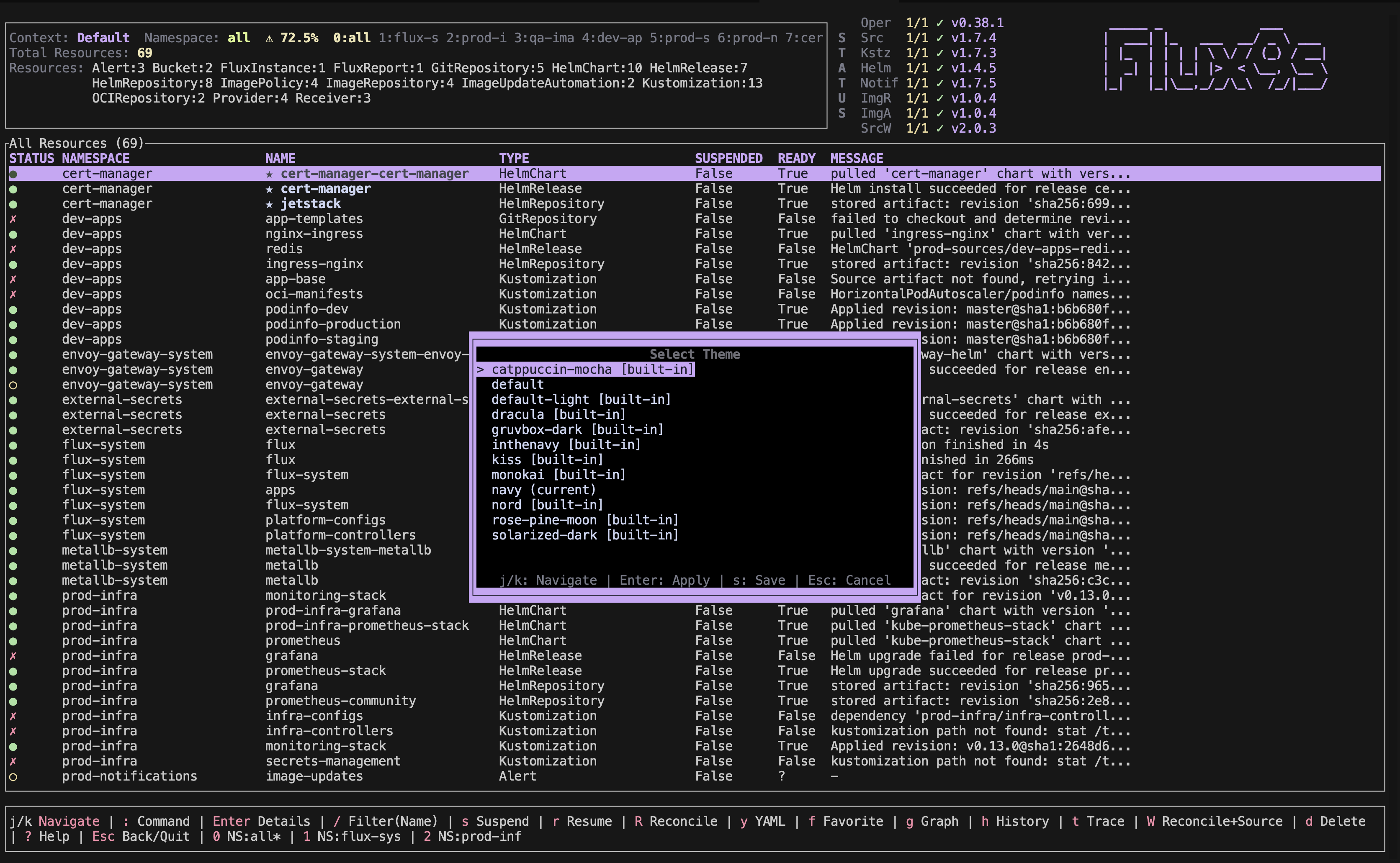
Features:
- Live Preview: Theme changes immediately as you navigate
- Current Theme: Marked with “(current)”
- Built-in Themes: Embedded themes marked with “[built-in]”
- 17 Built-in Themes: Includes popular themes like dracula, nord, monokai, gruvbox-dark, and more
Navigation:
j/kor↓/↑- Navigate through themes (with live preview)Enter- Apply theme temporarily (session only)s- Save theme to config file (persists across sessions)Esc- Cancel and restore original theme
The submenu saves themes to ui.skin in normal mode, or ui.skinReadOnly when readonly mode is enabled.
Health Filtering
Filter resources by health status:
:healthy- Show only healthy resources (ready=true, not suspended, or null status):unhealthy- Show only unhealthy resources (ready=false or suspended=true):all- Clear health filter and show all resources
The header displays a health percentage indicator showing the overall health of your resources. The indicator uses color coding:
- Green (●) - 90% or higher health
- Yellow (⚠) - 70-89% health
- Red (✗) - Below 70% health
Resource Views
Graph View (g)
Visualize resource relationships and dependencies. Shows upstream sources and downstream managed resources.
Supported resource types:
- Kustomization
- HelmRelease
- ArtifactGenerator
- FluxInstance
- ResourceSet
The graph view displays:
- Upstream sources (GitRepository, HelmRepository, etc.)
- Managed resources (workloads, ConfigMaps, Services, etc.)
- Resource groups (aggregated by type)
- Workload groups (aggregated workloads with status)
Reconciliation History (h)
View reconciliation history for resources that track it.
Supported resource types:
- FluxInstance
- ResourceSet
- Kustomization
- HelmRelease
The history view shows:
- Timestamp of each reconciliation
- Revision information
- Status (Success/Failed/Unknown)
- Messages from reconciliation events
Favorites (f)
Mark frequently accessed resources as favorites for quick access.
- Press
fon a resource to toggle favorite status - Use
:favoritesor:favcommand to view all favorites - Favorites are saved to your configuration file
- Favorites appear first in resource lists
Operations
Perform actions on selected resources:
| Key | Operation | Valid For |
|---|---|---|
s | Suspend reconciliation | GitRepository, OCIRepository, HelmRepository, Kustomization, HelmRelease, ImageUpdateAutomation |
r | Resume reconciliation | GitRepository, OCIRepository, HelmRepository, Kustomization, HelmRelease, ImageUpdateAutomation |
R | Reconcile resource | All Flux resources (cannot reconcile suspended resources) |
W | Reconcile with source | Kustomization, HelmRelease only |
d | Delete resource | All Flux resources (with confirmation) |
Note: Suspend and Resume operations are only available for resources that support the spec.suspend field. Reconcile operations will fail if the resource is currently suspended.
Terminal Commands
Configure flux9s from the command line:
# Use a specific kubeconfig file
flux9s --kubeconfig /path/to/kubeconfig

# Show all config options
flux9s config --help

# Set a configuration value
flux9s config set {KEY} {VALUE}

# Set a skin for readonly mode
flux9s config set ui.skinReadOnly rose-pine

# Import and set a skin
flux9s config skins set navy.yaml
Not all K9s skins are compatible with flux9s. flux9s skins follow a similar format but may require adjustments to work properly.
Supported Resource Types
flux9s supports all Flux CD resources from the official Flux controllers and Flux Operator:
Source Controller (source.toolkit.fluxcd.io)
- GitRepository (v1) - Git repository sources
- OCIRepository (v1, v1beta2) - OCI artifact sources
- HelmRepository (v1) - Helm chart repositories
- Bucket (v1) - S3-compatible bucket sources
- HelmChart (v1) - Helm chart artifacts
- ExternalArtifact (v1) - External artifact sources
- ArtifactGenerator (v1) - Artifact generation
Kustomize Controller (kustomize.toolkit.fluxcd.io)
- Kustomization (v1) - Kustomize-based deployments
Helm Controller (helm.toolkit.fluxcd.io)
- HelmRelease (v2beta2) - Helm release management
Image Reflector Controller (image.toolkit.fluxcd.io)
- ImageRepository (v1) - Container image repositories
- ImagePolicy (v1) - Image version policies
Image Automation Controller (image.toolkit.fluxcd.io)
- ImageUpdateAutomation (v1) - Automated image updates
Notification Controller (notification.toolkit.fluxcd.io)
- Alert (v1beta3) - Alert configurations
- Provider (v1beta3) - Notification providers
- Receiver (v1) - Webhook receivers
Flux Operator (fluxcd.controlplane.io)
- ResourceSet (v1) - Declarative resource sets
- ResourceSetInputProvider (v1) - Input providers for ResourceSets
- FluxReport (v1) - Flux reports
- FluxInstance (v1) - Flux instances
Screenshots
Main View
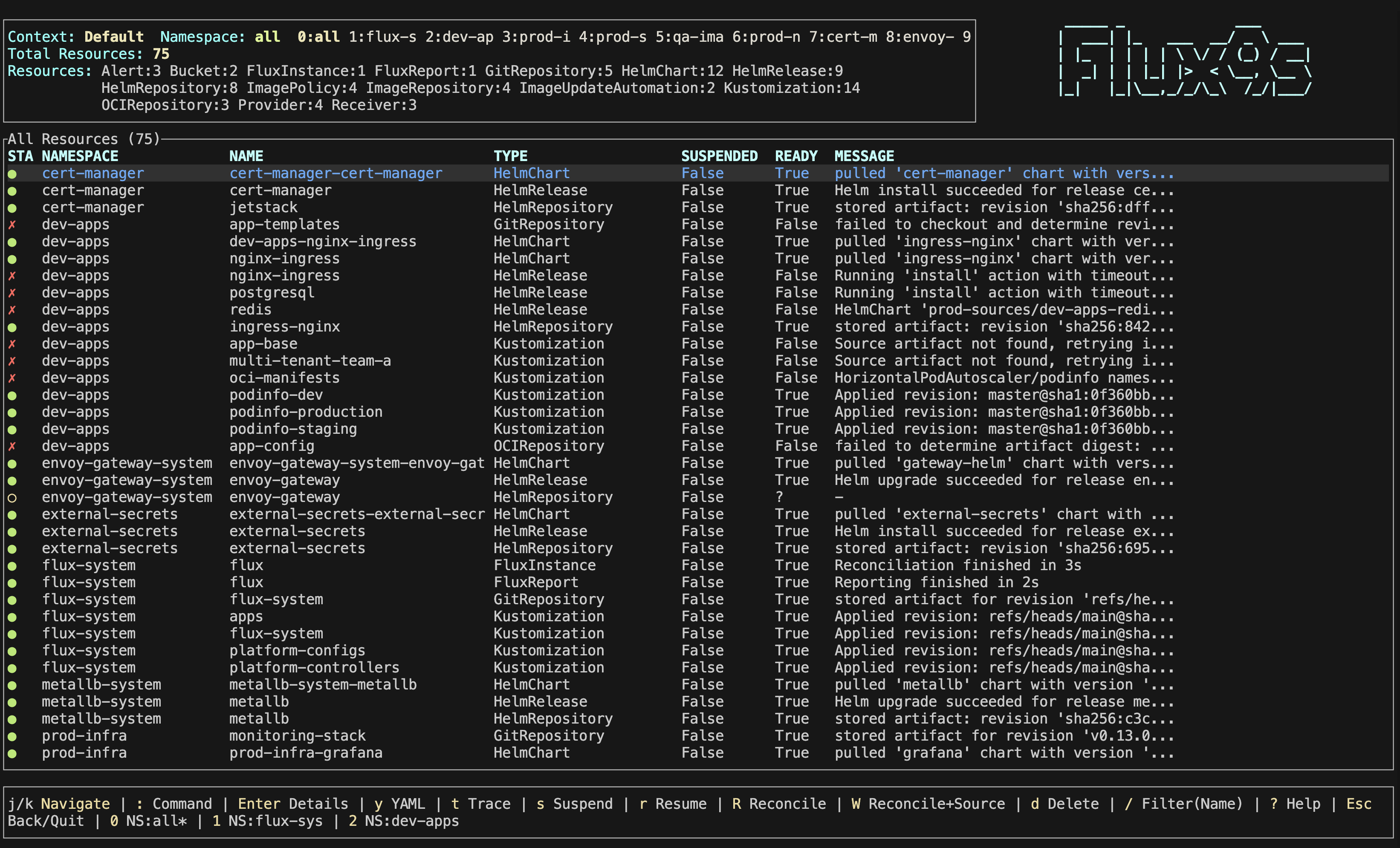
The main resource view showing all Flux resources in your cluster with real-time updates.
Trace View
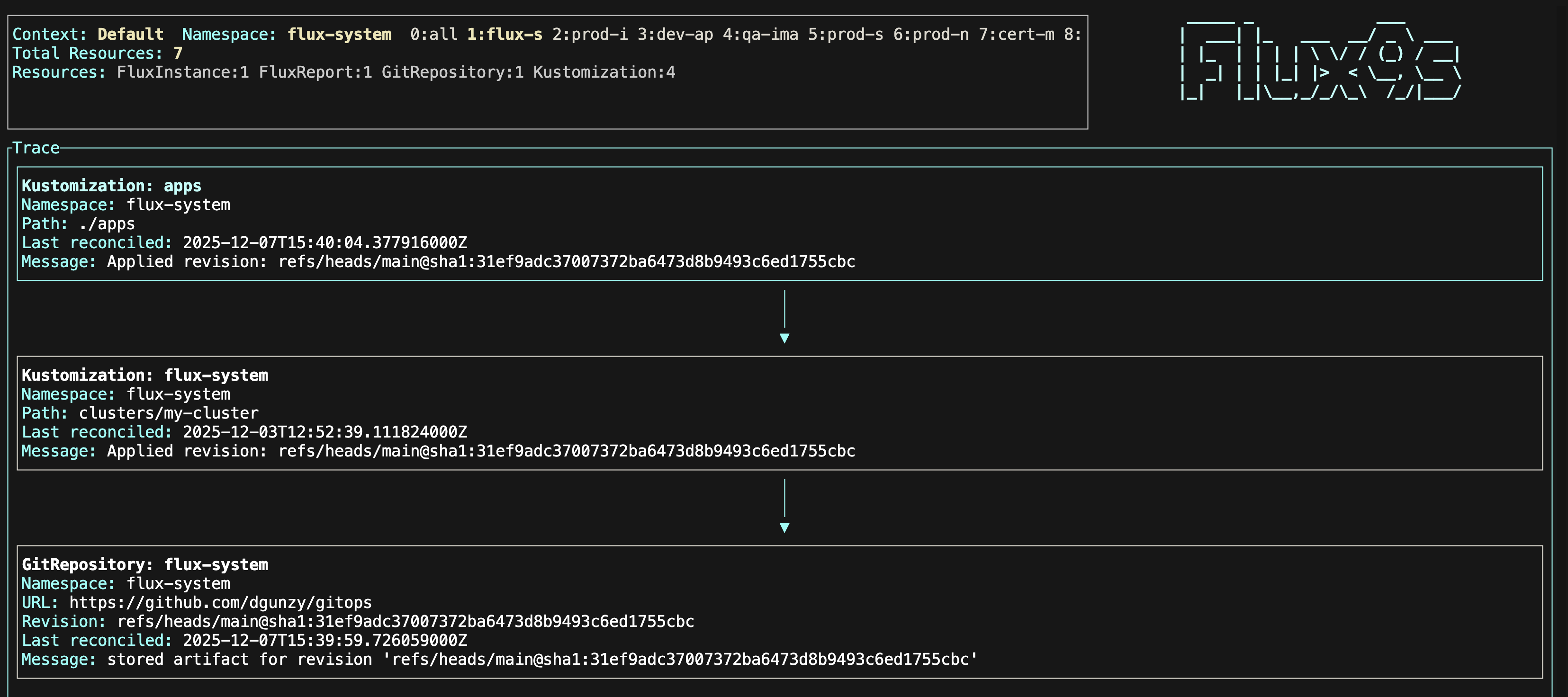
Visualize resource relationships and ownership chains to understand dependencies.
Filter View

Quickly find resources by name using the filter feature. Press / to start filtering.
Graph View
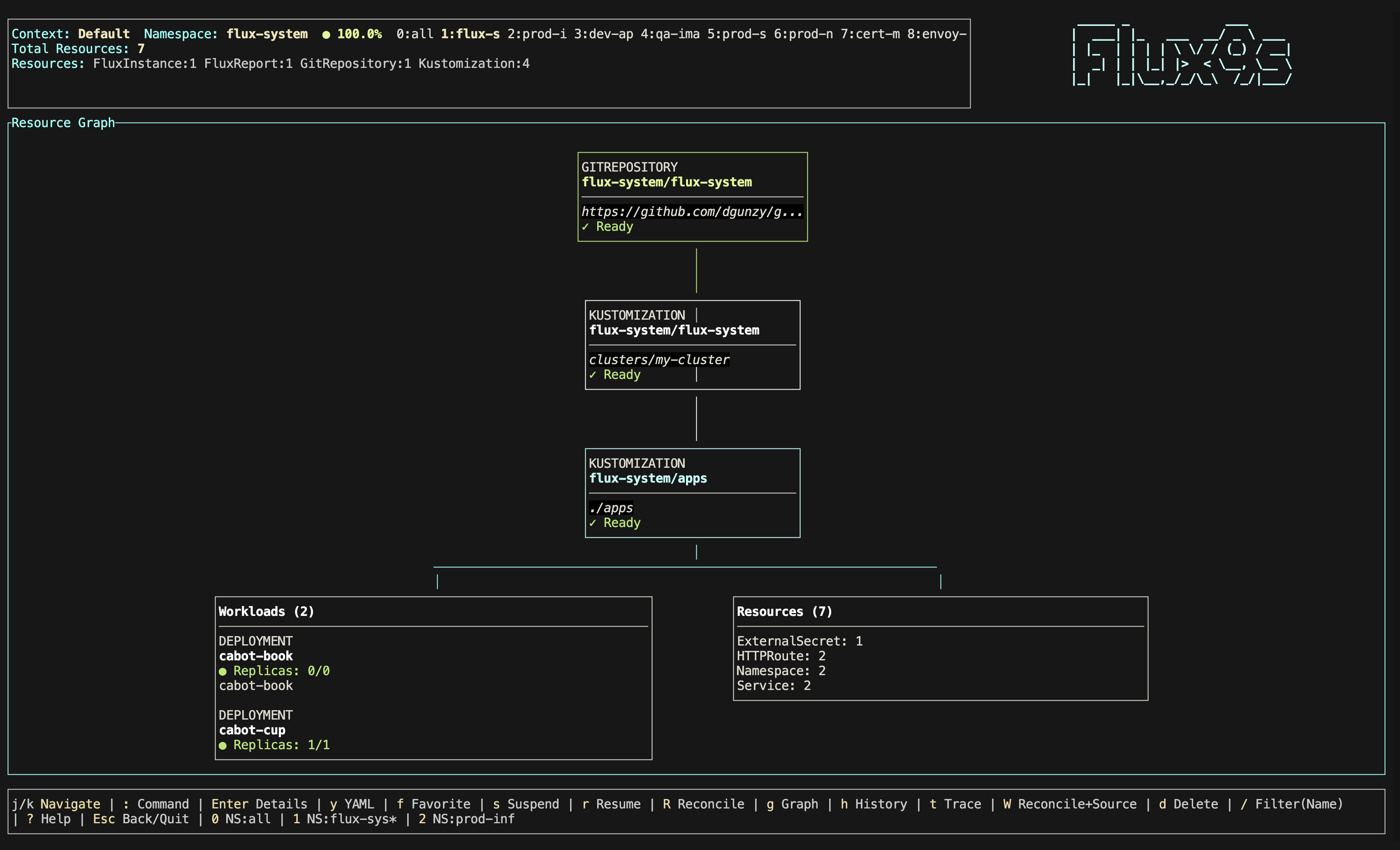
Visualize resource relationships and dependencies in a graph format.
Shows upstream sources and downstream managed resources for Kustomization, HelmRelease, ArtifactGenerator, FluxInstance, and ResourceSet.