Configuration
Configuration File Location
flux9s stores its configuration in a YAML file. The location depends on your operating system:
| OS | Location |
|---|---|
| Linux | ~/.config/flux9s/config.yaml |
| macOS | ~/.config/flux9s/config.yaml |
| Windows | %APPDATA%\flux9s\config.yaml |
To find the exact path on your system:
flux9s config path
Complete Configuration Reference
| Key | Type | Default | Description |
|---|---|---|---|
readOnly | bool | true | Disable all write operations |
defaultNamespace | string | flux-system | Starting namespace (all or -A = all namespaces) |
defaultControllerNamespace | string | flux-system | Namespace where Flux controllers run |
defaultResourceFilter | string | (none) | Resource type shown at startup (e.g., Kustomization) |
connectTimeoutSeconds | integer | 10 | Startup Kubernetes API health-check timeout in seconds |
discoverFluxResources | boolean | false | Opt-in dynamic discovery of Flux-adjacent CRDs (see below) |
editor | string | (none) | Editor command for e keybinding; falls back through $VISUAL, $EDITOR, then vi |
ui.enableMouse | bool | false | Enable mouse support |
ui.headless | bool | false | Hide the header bar |
ui.noIcons | bool | false | Disable Unicode icons for terminal compatibility |
ui.skin | string | default | Theme/skin name |
ui.skinReadOnly | string | (none) | Skin override when readOnly=true |
ui.splashless | bool | false | Skip the startup splash screen |
ui.rbacWarnings | bool | true | Show a “restricted” empty-state when RBAC (HTTP 403) blocks a Flux kind; set false to keep those views silently empty |
namespaceHotkeys | string[] | (auto-discover) | Namespaces assigned to number keys 0–9 |
contextSkins | map | (empty) | Per-context skin overrides |
favorites | string[] | (empty) | Persisted favorite resource keys |
Configuration Options
Read-Only Mode
By default, flux9s launches in read-only mode to prevent accidental changes. Destructive operations (like Ctrl+d delete) always show a confirmation screen.
Via command line:
flux9s config set readOnly false
During a session:
Use the :readonly command to toggle read-only mode for that session.
Read-only mode is enabled by default. Only disable it when you need to perform write operations.
Default Namespace
Control which namespace flux9s watches at startup.
# Watch only the flux-system namespace (default)
flux9s config set defaultNamespace flux-system

# Watch all namespaces
flux9s config set defaultNamespace all
Special values all and -A both cause flux9s to watch across all namespaces. Any other value is treated as a specific namespace name.
To set the namespace where your Flux controllers run (used for controller health display):
flux9s config set defaultControllerNamespace flux-system
Default Resource Filter
Set the resource type that is pre-selected when flux9s starts. Without this, flux9s starts in the unified view showing all resource types.
# Always start filtered to Kustomizations
flux9s config set defaultResourceFilter Kustomization

# Use a short alias — saved as the canonical display name
flux9s config set defaultResourceFilter ks

# Clear the filter (return to showing all types at startup)
flux9s config set defaultResourceFilter ""
Accepted values are any resource type name or alias:
| Resource Type | Accepted aliases |
|---|---|
Kustomization | ks, kustomization, kustomizations |
HelmRelease | hr, helmrelease, helmreleases |
GitRepository | gitrepo, gitrepository, gitrepositories |
OCIRepository | oci, ocirepository, ocirepositories |
HelmRepository | helmrepository, helmrepositories |
HelmChart | helmchart, helmcharts |
Alert | alert, alerts |
Provider | provider, providers |
Receiver | receiver, receivers |
ImageRepository | imagerepository, imagerepositories |
ImagePolicy | imagepolicy, imagepolicies |
ImageUpdateAutomation | imageupdateautomation, imageupdateautomations |
FluxInstance | fi, fluxinstance, fluxinstances |
FluxReport | fr, fluxreport, fluxreports |
ResourceSet | rset, resourceset, resourcesets |
You can also change the filter interactively during a session by typing :ks, :hr, etc. in the TUI, or :all to clear it.
Discovering Flux-Adjacent Resource Kinds
discoverFluxResources: true
Off by default. When enabled, flux9s watches CustomResourceDefinitions
labeled app.kubernetes.io/part-of=flux — the same label the Flux
Operator’s FluxReport uses to enumerate reconcilers — and shows their
resources alongside the built-in kinds: they appear in the unified list with
generic columns (readiness from standard conditions), get : commands from
the CRD’s own names (:widget, its plural, and any kubectl short names),
and support y/d. Kinds appear and disappear live as CRDs are labeled or
removed — no restart needed.
To register a kind (for example Flagger’s Canary), label its CRD once:
kubectl label crd canaries.flagger.app app.kubernetes.io/part-of=flux
That single label registers it with both the Flux Operator’s report and flux9s.
Guard rails:
- Discovered kinds are view-only: suspend, resume, reconcile, and delete never apply to them
- Built-in Flux kinds are excluded from discovery (the FluxInstance labels its own CRDs, and those are already watched natively)
- Cluster-scoped CRDs are skipped
- When the flag is off (the default), no CRD watch runs and no extra API calls are made
Use the :discover command to arm or disarm discovery mid-session without a
restart (the sibling of :readonly). The toggle applies to the current
session only — including across a context switch — and never writes the
config file; set discoverFluxResources above to change the default.
Disabling stops the CRD watch, deregisters the discovered kinds along with
their : commands, and removes their resources from the list.
Kubernetes API Connection Timeout
At startup, flux9s probes the Kubernetes API server before starting watchers. If the kubeconfig, context, credentials, network, or API server is not working, flux9s shows a connection error screen instead of hanging indefinitely.
flux9s config set connectTimeoutSeconds 15
You can also override the configured value for a single run:
FLUX9S_CONNECT_TIMEOUT=15 flux9s
The timeout must be a positive integer. The default is 10 seconds.
Namespace Hotkeys
Bind namespaces to number keys 0–9 for quick switching. If left empty, flux9s auto-discovers namespaces that contain Flux resources at startup.
The assigned hotkeys are listed in the help overlay (press ?). For interactive, searchable namespace switching, use the :ns command, which opens a picker seeded from these namespaces.
Via command line:
# Set hotkeys manually
flux9s config set namespaceHotkeys "all,flux-system,production,staging"

# Or using YAML array format
flux9s config set namespaceHotkeys "[all, flux-system, production, staging]"
In config.yaml:
namespaceHotkeys:
  - all           # Key 0
  - flux-system   # Key 1
  - production    # Key 2
  - staging       # Key 3
Maximum 10 entries (keys 0–9). To restore auto-discovery:
flux9s config restore-namespace-hotkeys
UI Configuration
Skins / Themes
flux9s includes 17 themes embedded in the binary:
- Dark: dracula, nord, solarized-dark, monokai, gruvbox-dark, catppuccin-mocha, rose-pine-moon, one-dark, tokyo-night, and more
- Light: default-light, kiss
Set a skin:
flux9s config set ui.skin dracula
Set a different skin when in read-only mode:
flux9s config set ui.skinReadOnly rose-pine
Interactive theme selection:
In the TUI, type :skin to open a live-preview theme picker:
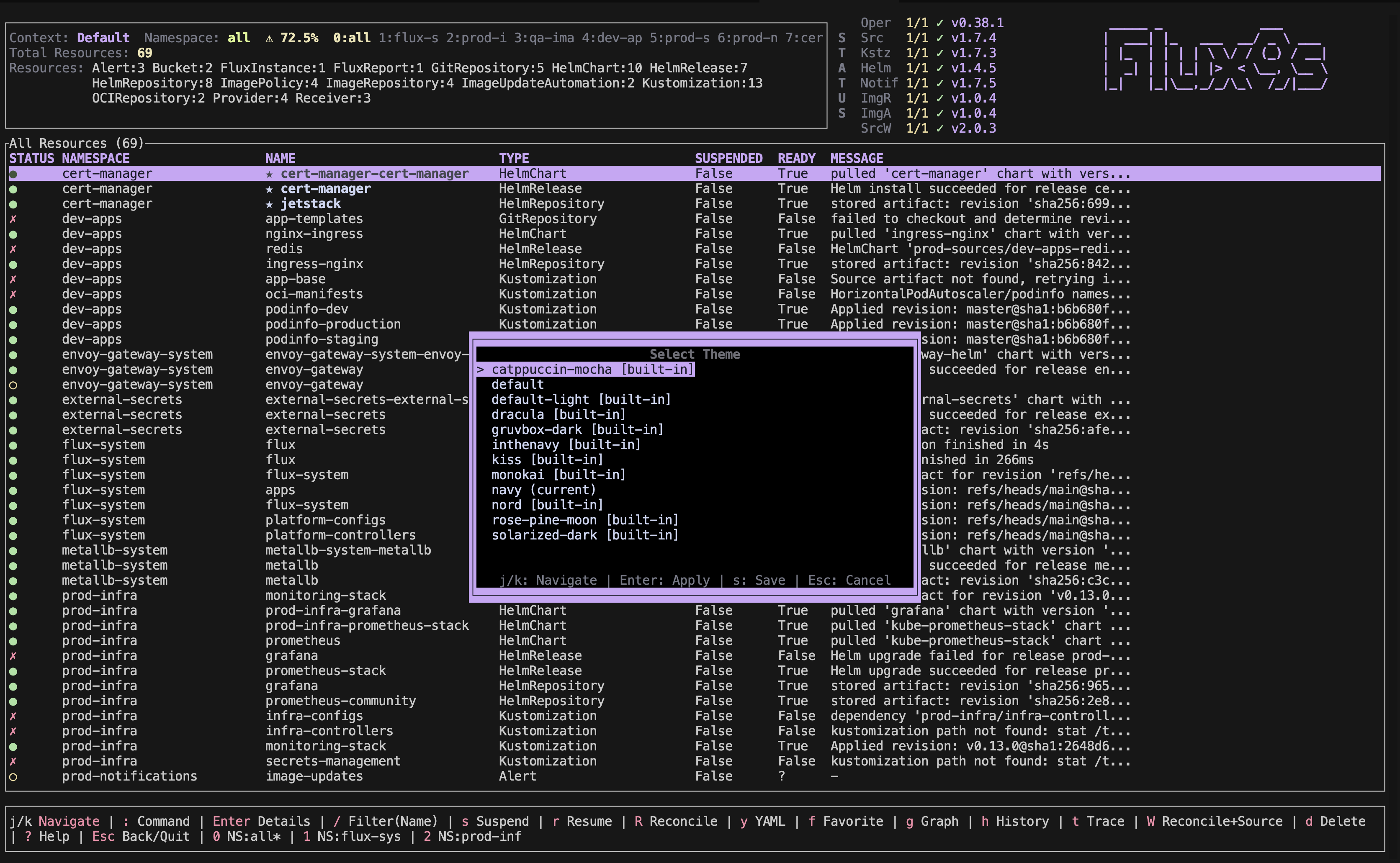
j/k— navigate themesEnter— apply temporarilys— save to configEsc— cancel
Install a custom skin from a file:
flux9s config skins set my-skin.yaml
Custom skin files go in:
- Linux/macOS:
~/.config/flux9s/skins/ - Windows:
%APPDATA%\flux9s\skins\
Not all K9s skins work directly with flux9s. The format is similar but may require minor adjustments.
Context-specific skins:
Automatically switch skins based on your current Kubernetes context:
contextSkins:
  production-cluster: rose-pine-moon
  dev-cluster: dracula
Or via CLI (cluster-specific config):
flux9s config set ui.skin rose-pine-moon --cluster production-cluster
Other UI Options
# Enable mouse support
flux9s config set ui.enableMouse true

# Hide the header bar
flux9s config set ui.headless true

# Disable Unicode icons (for limited terminal compatibility)
flux9s config set ui.noIcons true

# Skip the startup splash screen
flux9s config set ui.splashless true
Favorites
Mark resources as favorites for quick access. Favorites persist across sessions.
During a session:
- Press
fon any resource to toggle favorite status - Type
:favoritesor:favto view all favorites
In config.yaml (managed automatically, but can be edited manually):
favorites:
  - "Kustomization:flux-system:my-app"
  - "HelmRelease:production:nginx"
The format is ResourceType:namespace:name.
Environment Variables
Environment variables override the config file and are useful for CI, containers, or temporary overrides:
| Variable | Overrides | Example |
|---|---|---|
FLUX9S_SKIN | ui.skin | FLUX9S_SKIN=dracula flux9s |
FLUX9S_READ_ONLY | readOnly | FLUX9S_READ_ONLY=false flux9s |
FLUX9S_DEFAULT_NAMESPACE | defaultNamespace | FLUX9S_DEFAULT_NAMESPACE=production flux9s |
FLUX9S_DEFAULT_RESOURCE_FILTER | defaultResourceFilter | FLUX9S_DEFAULT_RESOURCE_FILTER=HelmRelease flux9s |
Cluster and Context-Specific Configuration
You can store config for a specific cluster or context. These are layered on top of the root config:
# Set a value for a specific cluster
flux9s config set readOnly false --cluster my-cluster

# Set a value for a specific context within a cluster
flux9s config set ui.skin dracula --cluster my-cluster --context prod-context
Cluster configs are stored under ~/.local/share/flux9s/clusters/<cluster-name>/.
Example config.yaml
# ~/.config/flux9s/config.yaml

readOnly: false
defaultNamespace: flux-system
defaultControllerNamespace: flux-system
defaultResourceFilter: Kustomization  # Start filtered to Kustomizations

ui:
  enableMouse: false
  headless: false
  noIcons: false
  skin: dracula
  skinReadOnly: rose-pine-moon  # Different skin in read-only mode
  splashless: false

namespaceHotkeys:
  - all           # Key 0 = all namespaces
  - flux-system   # Key 1
  - production    # Key 2
  - staging       # Key 3

contextSkins:
  production-cluster: rose-pine-moon
  dev-cluster: dracula

favorites:
  - "Kustomization:flux-system:apps"
  - "HelmRelease:production:nginx"
Command Reference
# Show all current config with defaults annotated
flux9s config list

# Get a specific value
flux9s config get ui.skin

# Set a value
flux9s config set readOnly false

# Show config file path
flux9s config path

# Validate configuration
flux9s config validate

# List available skins
flux9s config skins list

# Install a custom skin
flux9s config skins set path/to/skin.yaml

# Restore namespace hotkeys to auto-discover
flux9s config restore-namespace-hotkeys